How To Use TennisLedger
Step-by-step guides for getting started with every game mode.
Getting Started
Add Players FIRST STEP
Players are required for all game modes. Add your tennis partners before starting any session.
- From the home screen, tap Players.
- Tap the + button in the top right corner.
- Enter the player's name (required). Optionally set a rating, choose a color, and add contact info or notes. Color is useful to quickly identify players when in game modes.
- Tap Save.
- To edit a player later, tap their name in the player list.
Activate Players
Only active players appear in game setup screens.
- In the Players view, find the player in the All Players list.
- Toggle the switch next to their name to mark them as active.
- Active players appear in the grid at the top and are available for team selection in all game modes.
Live Ball PRACTICE
Start a Live Ball Session
For scoring points to players who win the challenge or maintain the winning side; and for tracking shot quality. Both players are awarded a point when the challenge is won.
- From the home screen, tap Live Ball.
- You will see the Current Players grid at the top showing all active players.
- Optionally toggle Advanced Mode to track shot types (Ace, Winner, Unforced Error, Double Fault) instead of simple points. Since many points are played in any challenge, this feature may not make sense, too difficult to record them all, however, the winning shot that won the challenge, or error, can be recorded for the player that made it, adding useful statistics later
- Tap Start Session. The timer begins and you are in Round 1.
- Select a team by tapping two player cards. Their names appear in the team slots at the top.
- Score points by tapping the scoring buttons. In simplified mode, tap Score Point. In Advanced Mode, choose the shot type and then tap the player who hit it.
More about advanced mode: When a winner is recorded for a winning side player, selecting who hit the shot records it for that player alone, yet awards the point to the team automatically. When a shot causes the team to change — such as a non-team player hitting a Winner or a team player making an Unforced Error — the app will prompt you to select the new winning team before awarding the point. If a player hit a Winner, they are automatically pre-selected; just tap their partner to complete the team. If a player on the win side made an Unforced Error, it is recorded for that player alone, then select both players for the new team that won the point. - When the round ends, tap Next Round to advance. Change teams if needed.
- When finished, tap End Session to save.
Match Scoring COMPETITIVE
Set Up a Match
Full tennis match scoring for singles or doubles with configurable rules.
- From the home screen, tap Matches.
- Assign teams. Drag players from the available list into Team 1 and Team 2. Each team needs at least one player. For doubles, drag two players to each side.
- Best Of — choose 1 Set, 3 Sets, or 5 Sets.
- Games to Win a Set — default is 6. You can set this from 2 to 10.
- Max Deuces — how many deuce-advantage cycles before a deciding point. Options: 0 (no-ad), 1, 2, or unlimited.
- Tie-Break — toggle on or off. When enabled, choose at what game score the tie-break triggers (e.g., 6-all) and whether it is 7-point or 10-point.
- If playing Best of 3, choose the Deciding Set format: play a full third set or a match tie-break (7 or 10 points).
- Tap Start Match.
Choose Serve Order
After tapping Start Match, a serve setup screen appears.
- Select which team serves first.
- If a team has more than one player (doubles), select who serves first on each team.
- Tap Start Match to begin play.
Score a Match
During play, record the outcome of each point.
- The match screen shows the current score, set scores, and who is serving.
- After each point, tap the shot type: Ace, Winner, Unforced Error, Double Fault, or Regular Point.
- Then tap the player who hit it. The score updates automatically.
- The app handles game, set, and match progression — including tie-breaks and deciding sets.
- When the match ends, you are taken to a summary with full statistics.
Tug-of-War WORKOUT GAME
Play Tug-of-War
A single score game where the value moves when one team (or singles player) wins a point, and down when the other teams wins. For example, when starting at 5, team 1 goes up, wins a point, score becomes 6. When team 2 wins the next point, score goes back to 5. Team 1 wins at 10 and team 2 wins at 0.
- From the home screen, tap Games.
- Assign teams. Drag players into Team 1 and Team 2 (at least one per team).
- Set the Starting Score (3–20). Both teams begin at this number and race to reach zero.
- Optionally enable Advanced Mode to track shot types for each point.
- Tap Tug-of-War to start.
- Tap the scoring team's button each time they win a point. Their score decreases toward zero while the opponent's increases.
- The first team to reach zero wins the game. A new game starts automatically.
- When finished, tap End Session.
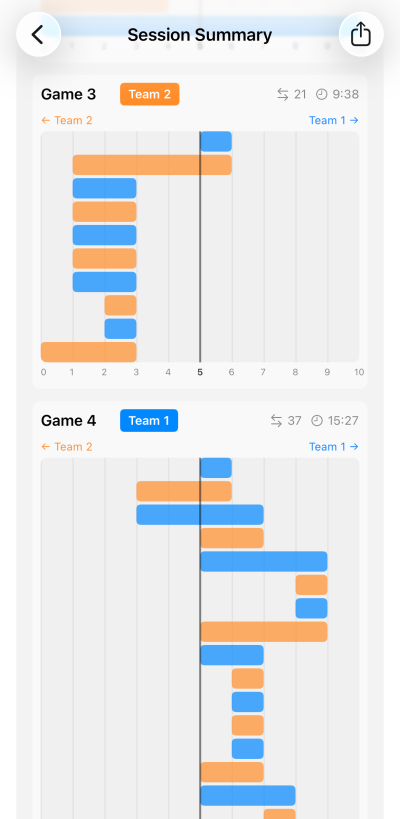
The Analytics show movement of the score as each player gains the momemtum over time to win the game.
Dingles WORKOUT GAME
Play Dingles
A game that simlulates doubles game play and three scores are kept. A point starts when 2 tennis balls are put in cross court play. Play continues cross court until a team loses the point. The remaining ball is now in play for all 4 players. If the same team wins the second ball that won the first ball, that team earns a point. Otherwise, it is a draw.
- From the home screen, tap Games.
- Assign teams (at least one player per team).
- Set the Winning Score (3–25). The first team to reach this score wins.
- Tap Play Dingles to start.
- Tap the winning team button only when both balls have been played and won by that team. Otherwise tap the draw button.
- The game ends automatically when a team reaches the winning score.
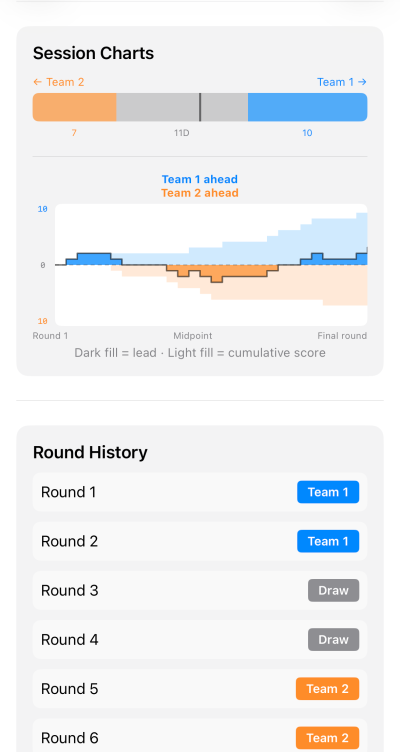
The Analytics show the relationship between how many times the round was a draw, with how many times each team won a point. And we have plots of the session as the score changed over time
Personal Scoring PRO
Track Your Own Shots
Solo shot tally for tracking your performance during any type of play. Requires TennisLedger Pro.
- From the home screen, tap Personal Scoring.
- Select a Game Type — Singles, Doubles, Tug-of-War, Dingles, Live Ball, Practice, or Other. This lets you filter your stats later.
- Optionally enter Session Notes (e.g., "windy day, working on backhand").
- Optionally select your opponents (up to 2) and a doubles partner from your player list. This lets Analytics group your stats by opponent.
- Tap Start Session.
- The session view has two swipeable pages:
- Page 1 — Shot Buttons: Tap Ace, Winner, Unforced Error, Double Fault, or Point after each shot. Tap Undo to remove the last entry.
- Page 2 — Game Control: Tap Next Game to advance the game counter. Tap End Session when finished.
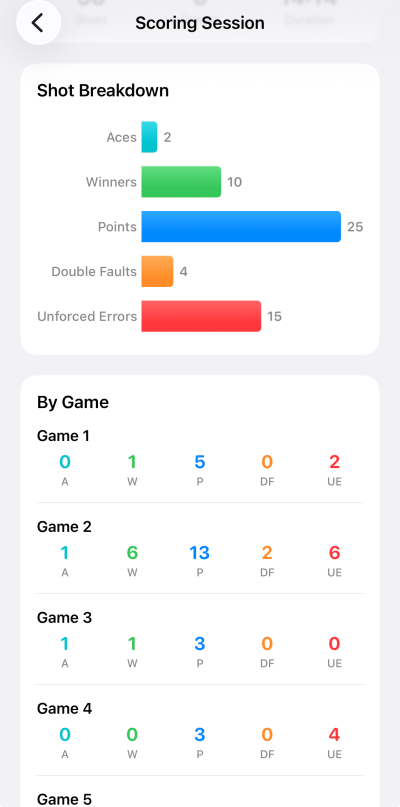
Session summary shows shots overall and per game
Apple Watch
Score from Your Wrist
All game modes can be controlled from your Apple Watch.
- Make sure TennisLedger is installed on both your iPhone and Apple Watch.
- Start a session on your iPhone first (Live Ball, Match, Game, or Personal Scoring).
- Open TennisLedger on your Apple Watch. It will automatically connect to the active session.
- Use the watch buttons to score points, change teams, undo, or end the session — all from your wrist.
- You can also start directly from the watch menu. Select a game mode, and the watch will send the command to your iPhone.
Managing Sessions
Abandon a Session
If you need to stop a session early, you can abandon it without losing your data.
- During any active session, tap the X button in the top left corner of the screen.
- A confirmation dialog will ask if you want to Keep Playing or End & Save.
- If you tap End & Save, the session is saved with all data recorded so far and marked as Incomplete in your session history.
View Past Sessions
All completed sessions are saved and viewable from the Sessions screen.
- From the home screen, tap Sessions.
- Sessions are grouped by type: Live Ball, Tug-of-War, Dingles, Matches, and Personal Scoring.
- Tap any session to see the full summary with statistics, charts, and per-game breakdowns.
- Swipe left on a session to delete it.